.webp)


.svg)


.svg)
.svg)
Adding a user to Google Analytics takes about a minute. Choosing the right person, the right level, and the right role takes more thought, and that choice affects every report your team uses to spend budget and judge results.
Google Analytics is the most widely used web analytics service on the web, and its current version, GA4, was running on roughly 13.5 million websites by August 2023. For most companies, the analytics property is a shared workspace for marketers, developers, agencies, and leadership. That makes access a security question as much as a convenience question.
The numbers support caution. The UK government's Cyber Security Breaches Survey 2025/2026 found that 43% of UK businesses identified a cyber breach or attack in the previous 12 months, while only 73% restrict IT admin and access rights to specific users. That leaves roughly one in four businesses without a rule that limits admin rights.
The short answer comes first. To add a user in GA4, you open Admin, select Property access management (or Account access management), select the plus (+) icon, choose Add users, enter the person's Google Account email, pick a role, and select Add. In this guide, we walk through how GA4 access works, which role fits which person, how to give someone access safely, and how to keep access clean as your team grows.
Google Analytics is the most widely used web analytics service on the web, and its current version, GA4, was running on roughly 13.5 million websites by August 2023. For most companies, the analytics property is a shared workspace for marketers, developers, agencies, and leadership. That makes access a security question as much as a convenience question.
The numbers support caution. The UK government's Cyber Security Breaches Survey 2025/2026 found that 43% of UK businesses identified a cyber breach or attack in the previous 12 months, while only 73% restrict IT admin and access rights to specific users. That leaves roughly one in four businesses without a rule that limits admin rights.
The short answer comes first. To add a user in GA4, you open Admin, select Property access management (or Account access management), select the plus (+) icon, choose Add users, enter the person's Google Account email, pick a role, and select Add. In this guide, we walk through how GA4 access works, which role fits which person, how to give someone access safely, and how to keep access clean as your team grows.
How Google Analytics 4 Access Works
Most access mistakes in Google Analytics start with an outdated mental model. Many marketers learned analytics in Universal Analytics, where an account held properties and each property held views. Teams used views to hide data from certain people, for example a view that showed only one country to a regional manager. GA4 has no views, so habits built on views no longer protect anything.
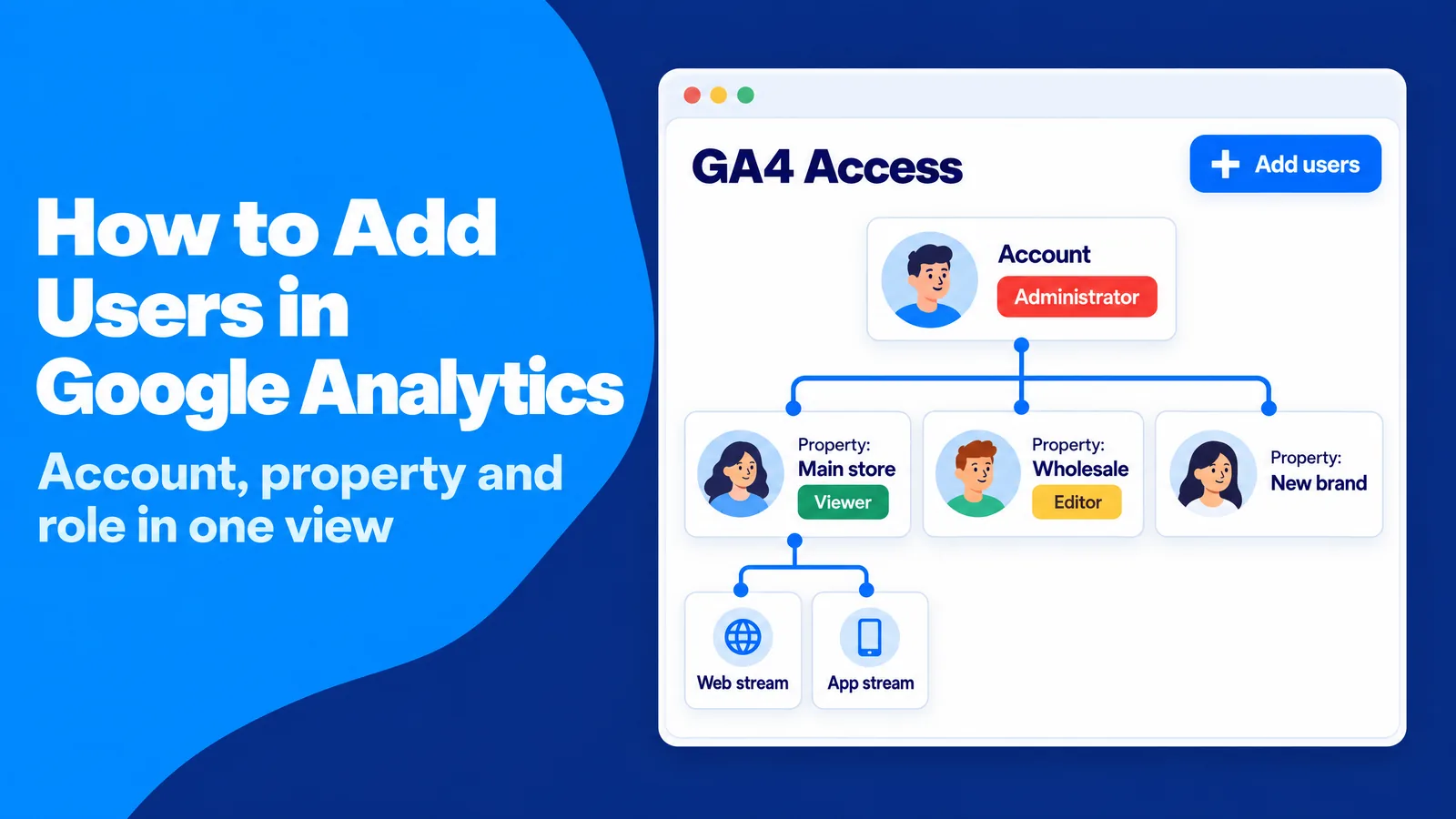
In GA4, you grant access at two main levels: the account and the property. An account is the top container and usually represents one company. A property holds the data for one website, app, or group of them, and data streams are the individual sources that feed it, such as your website or your Android app. You cannot add a user to a single data stream.
In GA4, you grant access at two main levels: the account and the property. An account is the top container and usually represents one company. A property holds the data for one website, app, or group of them, and data streams are the individual sources that feed it, such as your website or your Android app. You cannot add a user to a single data stream.
Account access versus property access
A user added at the account level receives the same role on every property inside that account, including properties created later. A user added at the property level sees only that property. This difference matters more than it seems.
Take a retailer with one account and three properties: the main store, a wholesale portal, and a new brand launching next quarter. If the retailer gives its SEO agency Editor access at the account level, the agency can see and change the new brand's property the day it is created. Nobody intended that, but inheritance did it automatically.
Take a retailer with one account and three properties: the main store, a wholesale portal, and a new brand launching next quarter. If the retailer gives its SEO agency Editor access at the account level, the agency can see and change the new brand's property the day it is created. Nobody intended that, but inheritance did it automatically.
How inheritance decides what a user can do
GA4 combines every role a person receives into one set of effective permissions, and the most permissive role wins. Effective permissions include roles from the account, from user groups, and from an organization, plus any role assigned directly on the property.
This has a practical consequence. If a consultant is an Editor at the account level, you cannot make them a Viewer on one property, because the account-level Editor role still applies there. The same logic covers data restrictions: a restriction inherited from the account cannot be removed at the property level, although you can add new ones.
This has a practical consequence. If a consultant is an Editor at the account level, you cannot make them a Viewer on one property, because the account-level Editor role still applies there. The same logic covers data restrictions: a restriction inherited from the account cannot be removed at the property level, although you can add new ones.
What changed from Universal Analytics
Universal Analytics stopped collecting data on July 1, 2023, and access to its interface ended on July 1, 2024. The old permission names were renamed in GA4: Manage Users became Administrator, Edit became Editor, Collaborate became Analyst, and Read & Analyze became Viewer. GA4 also added a new role, Marketer, for people who manage audiences and key events.
The way you restrict data has also changed. Report filters in GA4 help people focus, but users can remove them, so they are a convenience and not a security control. Real options for keeping data away from certain people are cost and revenue data restrictions, separate properties for separate businesses, and subproperties, which are available in Analytics 360 only. Companies in regulated fields such as healthcare or financial services usually need the stricter options, because their data protection obligations go beyond standard marketing practice.
The way you restrict data has also changed. Report filters in GA4 help people focus, but users can remove them, so they are a convenience and not a security control. Real options for keeping data away from certain people are cost and revenue data restrictions, separate properties for separate businesses, and subproperties, which are available in Analytics 360 only. Companies in regulated fields such as healthcare or financial services usually need the stricter options, because their data protection obligations go beyond standard marketing practice.
Practical step: map access before you invite anyone
A short access map saves hours later. You list your account, each property under it, and the people or companies who need each property. Next to every name, you write the decision that person makes with the data.
The rule that follows from the map is simple: property-level access is the default, and account-level access is reserved for the in-house people who own the whole analytics setup. This works because property-level access limits how far one mistake can travel. A new property stays private until you decide who belongs there, and an outside partner never inherits data they were not hired to work on.
The rule that follows from the map is simple: property-level access is the default, and account-level access is reserved for the in-house people who own the whole analytics setup. This works because property-level access limits how far one mistake can travel. A new property stays private until you decide who belongs there, and an outside partner never inherits data they were not hired to work on.
Why Sharing Google Analytics Access Makes Your Marketing Stronger
Access control can sound like a list of restrictions, but the bigger problem in many companies is the opposite: too few people can see the data. In a typical small business, one person set up Google Analytics years ago and still holds the only login anyone uses. Reports reach the team as monthly screenshots. By the time a content writer learns that an article drove sign-ups, the campaign behind it has ended.
Screenshots create a second problem: nobody can check them. A cropped chart hides the date range, the comparison period, and the filters behind it. When two teams bring different screenshots to the same meeting, the discussion shifts from what customers did to whose number is correct.
A third problem is that one person ends up doing every job. The marketer who launches a campaign also reads its results and reports them to management. Accounting solved this long ago with separation of duties, the principle that more than one person should take part in a task so that errors and misuse are caught early. Analytics benefits from the same check.
Screenshots create a second problem: nobody can check them. A cropped chart hides the date range, the comparison period, and the filters behind it. When two teams bring different screenshots to the same meeting, the discussion shifts from what customers did to whose number is correct.
A third problem is that one person ends up doing every job. The marketer who launches a campaign also reads its results and reports them to management. Accounting solved this long ago with separation of duties, the principle that more than one person should take part in a task so that errors and misuse are caught early. Analytics benefits from the same check.
Paid campaigns show the value of a second reviewer
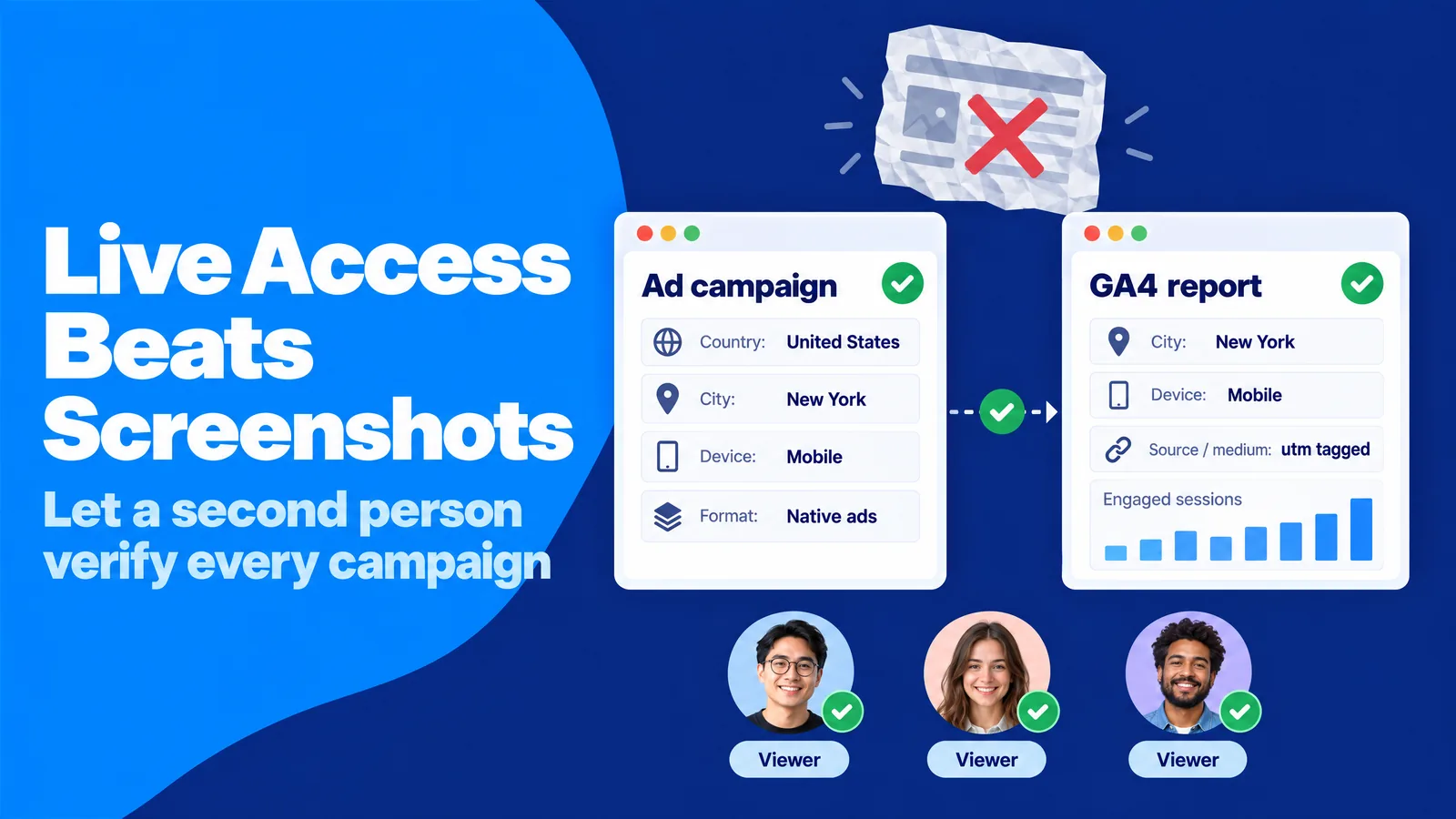
Paid advertising is a clear example. When you run display or native ad campaigns through SparkTraffic, an advertising platform that shows your ads to people browsing partner publisher websites with targeting by country, city, and device, the campaign dashboard reports delivery while your own GA4 property records how those visitors behave on your site. The two sources become evidence only when someone compares them. A colleague with Viewer access can confirm that the cities and devices in GA4 match the targeting, that referrers come from publisher domains, and that engaged sessions and key events justify the budget.
The advertising platform itself never needs access to your analytics. UTM parameters, the short tags at the end of a campaign link, tell GA4 which campaign brought each visit, so your team can verify results inside its own property. Your data stays under your control, and the verification is done by people who did not run the campaign.
The advertising platform itself never needs access to your analytics. UTM parameters, the short tags at the end of a campaign link, tell GA4 which campaign brought each visit, so your team can verify results inside its own property. Your data stays under your control, and the verification is done by people who did not run the campaign.
Practical step: give live access instead of screenshots
The practical move is to replace recurring screenshots with live Viewer access for the people who make decisions from the data. You start with an access purpose list: each person, the decision they make, and the lowest role that supports it. For example, a content lead who decides which topics to expand needs Viewer access to landing page and engagement reports, and nothing more.
This approach works for three reasons. People who can check numbers themselves trust them more and argue about them less. More readers catch tracking errors sooner, because a broken tag shows up as a strange drop in someone's routine report. And because every person gets the lowest role that fits their purpose, wider visibility does not mean wider risk.
This approach works for three reasons. People who can check numbers themselves trust them more and argue about them less. More readers catch tracking errors sooner, because a broken tag shows up as a strange drop in someone's routine report. And because every person gets the lowest role that fits their purpose, wider visibility does not mean wider risk.
Google Analytics User Roles and Permissions: Which Role Fits Each Person
The most common shortcut in GA4 is giving everyone Administrator "just to be safe." It feels helpful, since nobody comes back asking for more rights. In practice, it turns every user into someone who can change data retention, delete key events, edit attribution settings, and invite more people.
Small changes by well-meaning people can damage months of reporting. A freelance writer with Editor access might create a data filter while testing something, and data filters permanently exclude matching data from processing. A junior marketer with Marketer access might switch the attribution model, which changes how credit for key events appears across reports. Neither person acted in bad faith. They simply had more power than their job required.
Security professionals call the fix the principle of least privilege. NIST defines it as restricting user access "to the minimum necessary to accomplish assigned tasks" (NIST glossary). Jerome Saltzer's original formulation states that "every program and every privileged user of the system should operate using the least amount of privilege necessary to complete the job" (Wikipedia).
Small changes by well-meaning people can damage months of reporting. A freelance writer with Editor access might create a data filter while testing something, and data filters permanently exclude matching data from processing. A junior marketer with Marketer access might switch the attribution model, which changes how credit for key events appears across reports. Neither person acted in bad faith. They simply had more power than their job required.
Security professionals call the fix the principle of least privilege. NIST defines it as restricting user access "to the minimum necessary to accomplish assigned tasks" (NIST glossary). Jerome Saltzer's original formulation states that "every program and every privileged user of the system should operate using the least amount of privilege necessary to complete the job" (Wikipedia).
The five GA4 roles in plain English
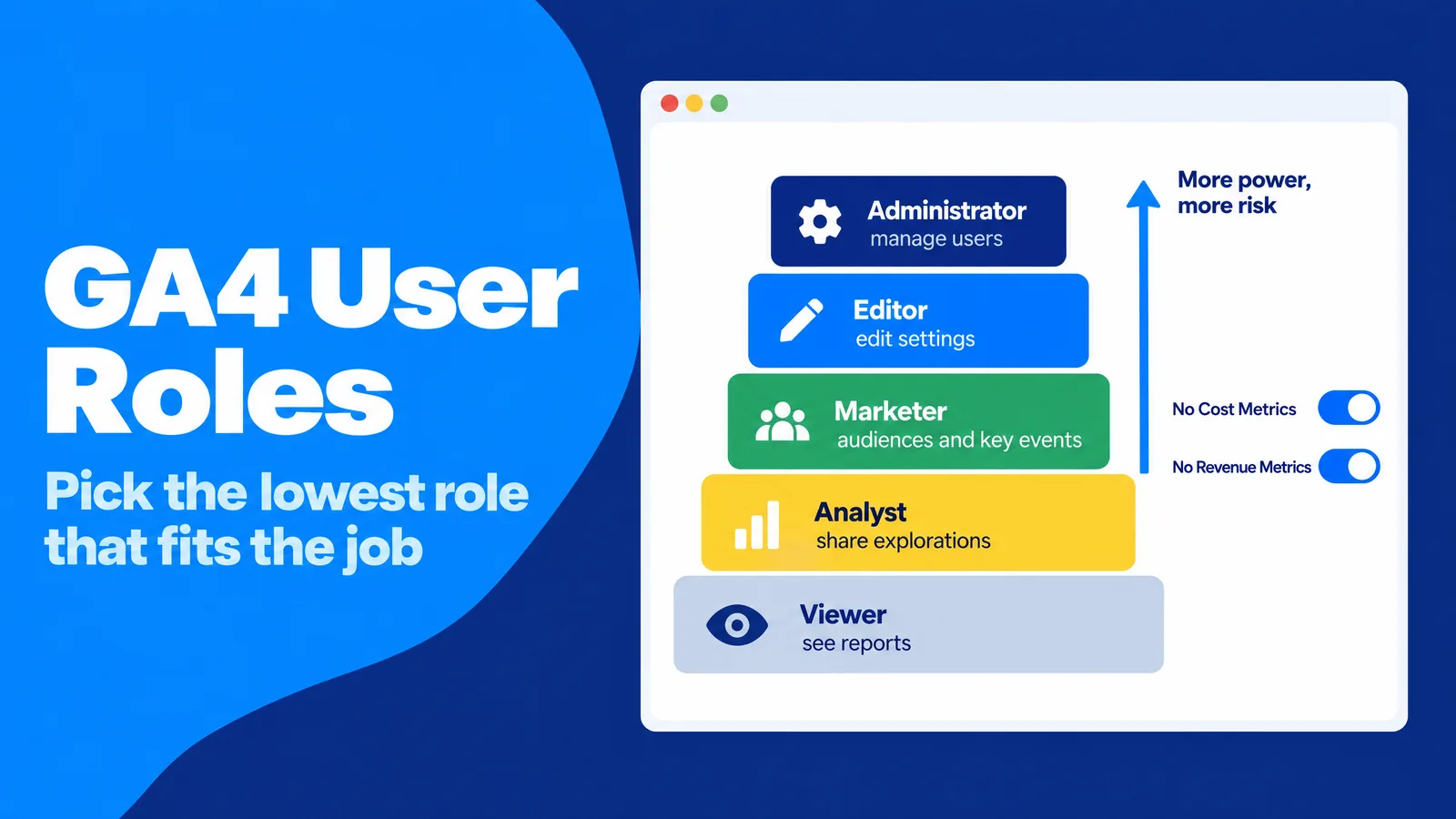
GA4 offers five roles plus a None option. Higher roles include the permissions of the roles below them.
- Administrator: full control of the account or property, including adding and removing users and assigning any role.
- Editor: full control of property settings, such as data streams, events, and integrations, but no user management.
- Marketer: creates and edits audiences, events, and key events, edits attribution settings, and can import key events into Google Ads. A key event is an action you mark as important, such as a purchase or a sign-up.
- Analyst: shares explorations with other users and creates annotations, which are notes on report charts. Explorations are GA4's custom analysis workspaces.
- Viewer: sees data and settings, adds comparisons and secondary dimensions to reports, and builds personal explorations.
- None: no role on this resource, although the person may have a role elsewhere.
The Analyst role is often the best fit for team members who build analysis for others. An Analyst can share an exploration, for example one that tracks ChatGPT referrals in GA4, with the whole team without being able to change a single property setting.
Data restrictions for cost and revenue
Roles control what a person can do. Data restrictions control what a person can see. GA4 offers two: No Cost Metrics hides advertising cost data, and No Revenue Metrics hides revenue data such as purchase revenue and lifetime value.
Restricted users see zero in place of the hidden values, and the restriction also applies when they pull data through the API. A content agency, for example, can study which articles attract engaged visitors without seeing your revenue, which may be confidential for a private company.
Restricted users see zero in place of the hidden values, and the restriction also applies when they pull data through the API. A content agency, for example, can study which articles attract engaged visitors without seeing your revenue, which may be confidential for a private company.
A starting role for each job
The following list matches typical jobs with a sensible starting role:
- In-house analytics owner: Administrator, held by two people at the account level.
- Developer who implements tracking: Editor at the property level for the length of the project.
- Paid media agency: Marketer at the property level, so the team can build audiences and manage key events.
- SEO or content consultant: Viewer or Analyst at the property level, often with No Revenue Metrics.
- Executives and finance: Viewer, with full revenue visibility.
- Reporting tools and data pipelines: Viewer, assigned to a service account.
Practical step: start one level lower than you think
When you hesitate between two roles, the lower one is the better starting point. Upgrading a user takes less than a minute when they reach a real limit. Reversing a permanent data filter is impossible.
This approach also produces useful information. Each upgrade request tells you exactly what a person is trying to do, which helps you decide whether the upgrade is right or whether another teammate should handle that task.
This approach also produces useful information. Each upgrade request tells you exactly what a person is trying to do, which helps you decide whether the upgrade is right or whether another teammate should handle that task.
How to Add a User to Google Analytics Step by Step
Adding a user is technically simple, which is why the errors around it are so common. The most frequent failure is an identity mismatch. You invite jane@agency.com, but Jane signs in to Google with her personal Gmail address, sees that she has no access, and emails you two days later. Another frequent failure is adding the user to the wrong property because the property selector still showed the last property you visited.
A quieter failure is adding someone at the account level out of habit when the job needed one property. Nothing breaks on day one, so the mistake stays hidden until a new property appears with an outsider already on it.
A quieter failure is adding someone at the account level out of habit when the job needed one property. Nothing breaks on day one, so the mistake stays hidden until a new property appears with an outsider already on it.
What you need before you start
Three things need to be in place before you open the access panel:
- The Administrator role at the level where you want to add the user, either the account or the property.
- The exact email address the person uses to sign in to Google. This can be a Gmail address, a Google Workspace address, or any other email registered as a Google Account.
- A decision on level, role, and data restrictions, taken from your access map.
Adding a user at the property level
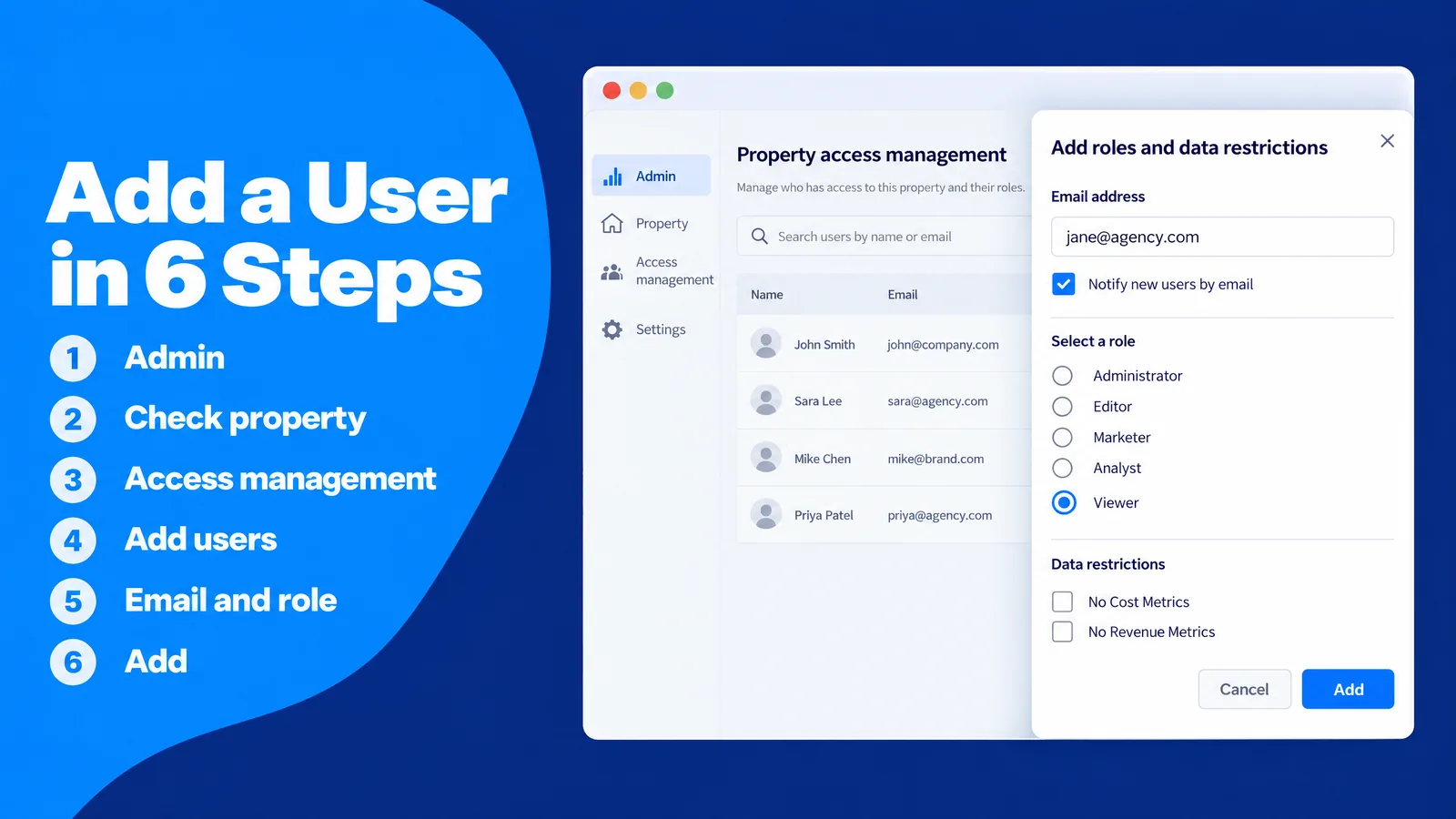
Property-level access is the right choice for most people. The process takes six steps:
- You sign in to Google Analytics and select Admin, the gear icon at the bottom of the left menu.
- You check the property selector at the top of the screen and confirm that the correct property is active.
- In the property section of Admin, you select Property access management.
- You select the plus (+) icon and choose Add users.
- You enter the person's email address, leave "Notify new users by email" ticked, and choose the role and any data restrictions.
- You select Add, and the person appears in the access list with their role.
Adding a user at the account level
The process is the same, with one change: in step 3, you select Account access management in the account section of Admin. The user then receives the chosen role on every current and future property in the account.
Account-level access makes sense for in-house analytics owners and a small number of senior staff. For agencies and freelancers, property-level access is almost always the better fit.
Account-level access makes sense for in-house analytics owners and a small number of senior staff. For agencies and freelancers, property-level access is almost always the better fit.
Confirming that the invitation worked
An invitation is complete only when the person can see the right data. A quick check closes the loop. You ask the new user to sign in with the exact invited address and confirm that the property appears in their property selector. Then you search for their name in the access list and confirm the role.
This takes two minutes and catches identity mismatches on day one, before a deadline depends on them. It also confirms that the notification email arrived and did not land in a spam folder.
This takes two minutes and catches identity mismatches on day one, before a deadline depends on them. It also confirms that the notification email arrived and did not land in a spam folder.
Handling access requests
GA4 lets people request access. When someone opens a shared report link without permission, they can choose a role and send a request, which reaches all Administrators by email together with their name and address.
Requests deserve the same care as any invitation. Phishing remains the most common attack type by far: the same UK survey found that 38% of businesses experienced phishing attacks in the past year. A request from an address that looks like a colleague's deserves a quick confirmation through a channel you already trust, such as a call or your company chat, before you approve it.
Requests deserve the same care as any invitation. Phishing remains the most common attack type by far: the same UK survey found that 38% of businesses experienced phishing attacks in the past year. A request from an address that looks like a colleague's deserves a quick confirmation through a channel you already trust, such as a call or your company chat, before you approve it.
How to Change or Remove a User in Google Analytics
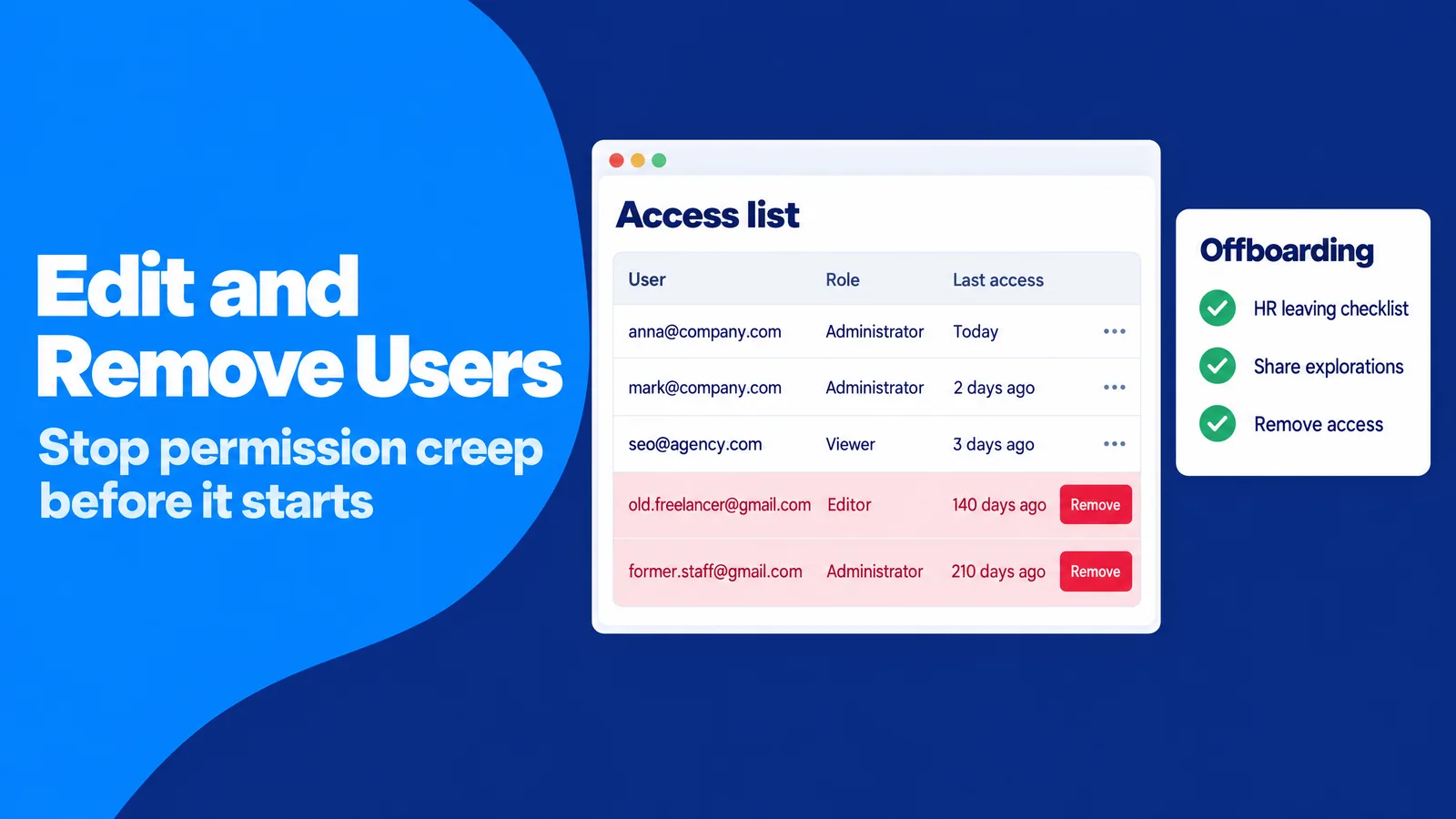
Access tends to grow and rarely shrinks. An employee moves from marketing to sales but keeps Editor rights. An agency contract ends, but nobody removes the agency's five users. A freelancer finishes a project in March and still has access in December.
A typical first access audit at a mid-size online store looks like this. It finds 23 users, nine of whom no longer work with the company, and two of those nine still hold Administrator. One is a former employee who signed in with a personal Gmail address, so closing their company email account did nothing to their analytics access. This pattern is often called permission creep, and it is how sensitive data ends up with people who have no reason to see it.
A typical first access audit at a mid-size online store looks like this. It finds 23 users, nine of whom no longer work with the company, and two of those nine still hold Administrator. One is a former employee who signed in with a personal Gmail address, so closing their company email account did nothing to their analytics access. This pattern is often called permission creep, and it is how sensitive data ends up with people who have no reason to see it.
Changing a user's role
You change a role from the same access management page where you added it. You search for the person by full or partial email, select their name, adjust the role or data restrictions, and save.
If the role does not change the way you expect, inheritance is usually the reason. A role assigned at the account level, through a user group, or through an organization overrides a lower role on the property. The fix is to change the role at its source.
If the role does not change the way you expect, inheritance is usually the reason. A role assigned at the account level, through a user group, or through an organization overrides a lower role on the property. The fix is to change the role at its source.
Removing a user
To remove someone, you tick the checkbox next to their name in the access list and select Remove. A few rules apply. Removing a user from the whole account requires an account-level Administrator. The last Administrator cannot remove themselves, which protects the account from being left without an owner. If you use subproperties, removing a user from the source property also removes them from its subproperties.
Practical step: tie analytics offboarding to processes you already run
The most reliable offboarding routine is one that runs without anyone remembering it. You add "remove Google Analytics access" to the HR leaving checklist and to the closing steps of every agency or freelance contract. Before removal, you ask the person to share any explorations the team still uses, because personal explorations belong to the person who created them.
This works because access removal then happens on the same day the relationship ends, not months later during an audit. It also supports your legal duties. If your analytics data includes personal data, the GDPR requires a process for "regularly testing, assessing and evaluating" your security measures (GDPR Article 32), and documented offboarding is part of that evidence.
This works because access removal then happens on the same day the relationship ends, not months later during an audit. It also supports your legal duties. If your analytics data includes personal data, the GDPR requires a process for "regularly testing, assessing and evaluating" your security measures (GDPR Article 32), and documented offboarding is part of that evidence.
How to Give an Agency or Freelancer Access to Google Analytics
Outside partners create the hardest access decisions. Agencies often ask for Administrator "to set things up," freelancers ask for a password because it is faster, and some partners add their own subcontractors without telling you. Each shortcut feels small at the start of a project and expensive at the end.
The most painful case is lost ownership. A startup hires an agency to set up analytics, and the agency creates the account under its own Google login. Two years later the contract ends badly, and the startup has no Administrator on its own data. Recovering control means proving ownership of every website in the account, typically by placing a verification file named analytics.txt on the domain, and then filing a request with Google support. If the account also links to advertising accounts, ownership of those must be proven with payment details too.
The most painful case is lost ownership. A startup hires an agency to set up analytics, and the agency creates the account under its own Google login. Two years later the contract ends badly, and the startup has no Administrator on its own data. Recovering control means proving ownership of every website in the account, typically by placing a verification file named analytics.txt on the domain, and then filing a request with Google support. If the account also links to advertising accounts, ownership of those must be proven with payment details too.
Why ownership should stay in-house
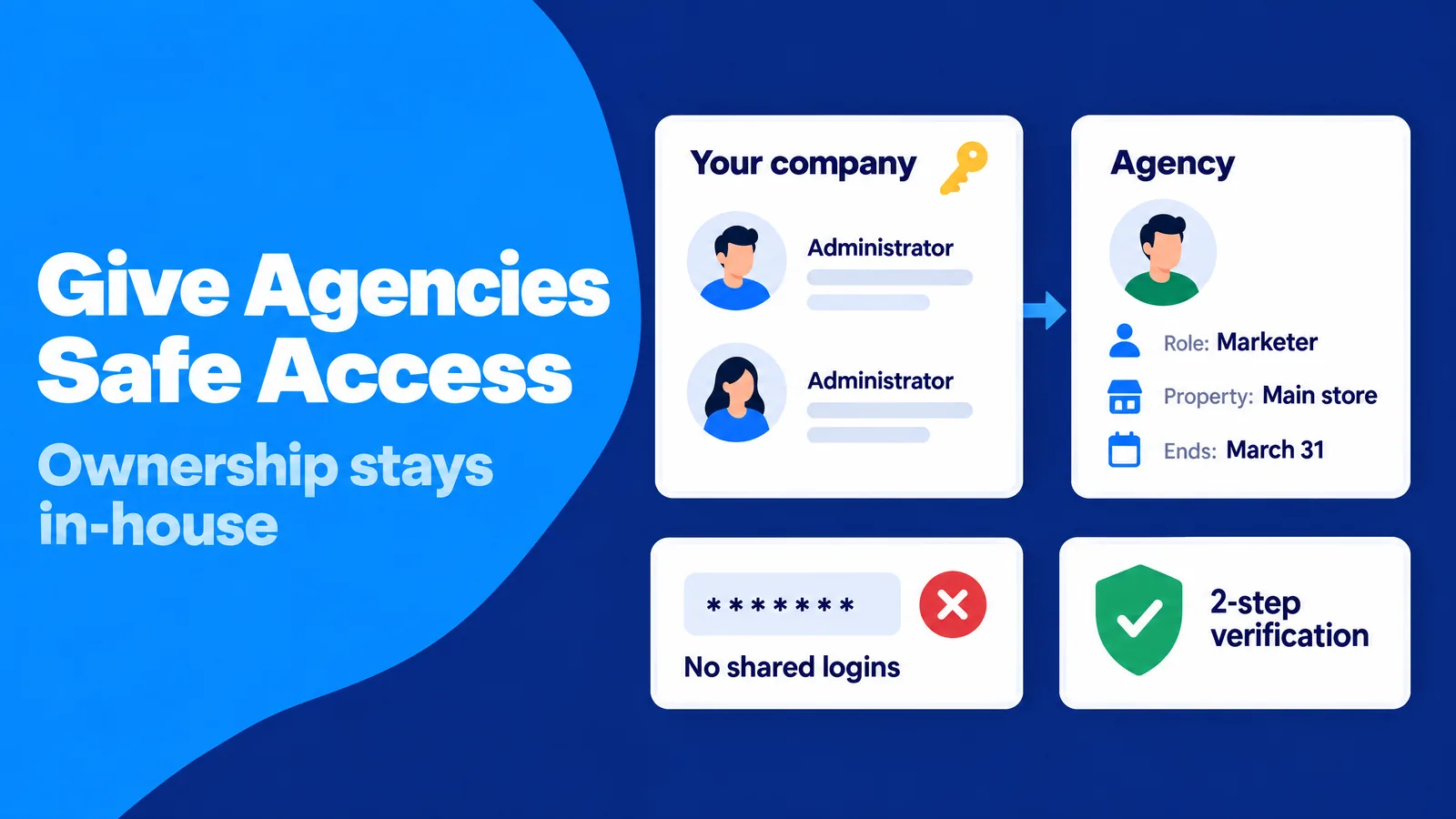
The account should be created by your company, under a Google Account your company controls, and at least two of your own employees should hold Administrator. Agencies then receive Editor or Marketer on the properties they work on.
This works because ownership never depends on a vendor relationship. If the partnership ends, you remove the agency's users in a minute, and your history, settings, and integrations stay intact.
This works because ownership never depends on a vendor relationship. If the partnership ends, you remove the agency's users in a minute, and your history, settings, and integrations stay intact.
Why shared logins create risk
Sharing a Google Account password with a partner is a bigger risk than it looks. The Google Analytics login is a full Google Account, so the same password may also open email, documents, and other Google services. Shared logins also erase accountability. Change history records the account that made each change, and with a shared login you cannot tell which person changed a setting.
Individual invitations solve both problems. Each partner signs in with their own account, protected by their own multi-factor authentication, and every change is attributed to a real person. This matters, because only 47% of UK businesses require any two-factor authentication, according to the same government survey.
Individual invitations solve both problems. Each partner signs in with their own account, protected by their own multi-factor authentication, and every change is attributed to a real person. This matters, because only 47% of UK businesses require any two-factor authentication, according to the same government survey.
Scope, duration, and data protection in writing
A short written scope prevents most disputes. It names the property, the role, any data restrictions, the start date, and the end date, and it states that the partner will not add other users. A calendar reminder for the end date turns the agreement into action.
If your property holds personal data, such as user IDs sent from a login system, the partner may act as a data processor under the GDPR. Article 28 requires you to use only processors that provide "sufficient guarantees" and to govern the work with a contract. Article 32 also requires that anyone acting under your authority who has access to personal data processes it only on your instructions. Access roles are the technical side of that legal promise.
If your property holds personal data, such as user IDs sent from a login system, the partner may act as a data processor under the GDPR. Article 28 requires you to use only processors that provide "sufficient guarantees" and to govern the work with a contract. Article 32 also requires that anyone acting under your authority who has access to personal data processes it only on your instructions. Access roles are the technical side of that legal promise.
Access that arrives through product links
Some access does not appear as a named person. When you link a Google Ads account to a GA4 property, the users of that Ads account receive Analytics roles through linked users that represent groups of people. The recommended mapping gives Ads administrators Editor, standard users Marketer, and read-only, billing, and email-only users Viewer. Firebase project links work in a similar way for app properties.
These linked users appear in your property access list, and you can change their roles like any other user. A quick review after every new link keeps a large Ads team from receiving more analytics power than you intended. The same review is worth doing whenever a partner starts paid ad campaigns to increase your traffic, because new campaigns often bring new links and new people.
These linked users appear in your property access list, and you can change their roles like any other user. A quick review after every new link keeps a large Ads team from receiving more analytics power than you intended. The same review is worth doing whenever a partner starts paid ad campaigns to increase your traffic, because new campaigns often bring new links and new people.
Why You Can't Add a User in Google Analytics: Common Errors and Fixes
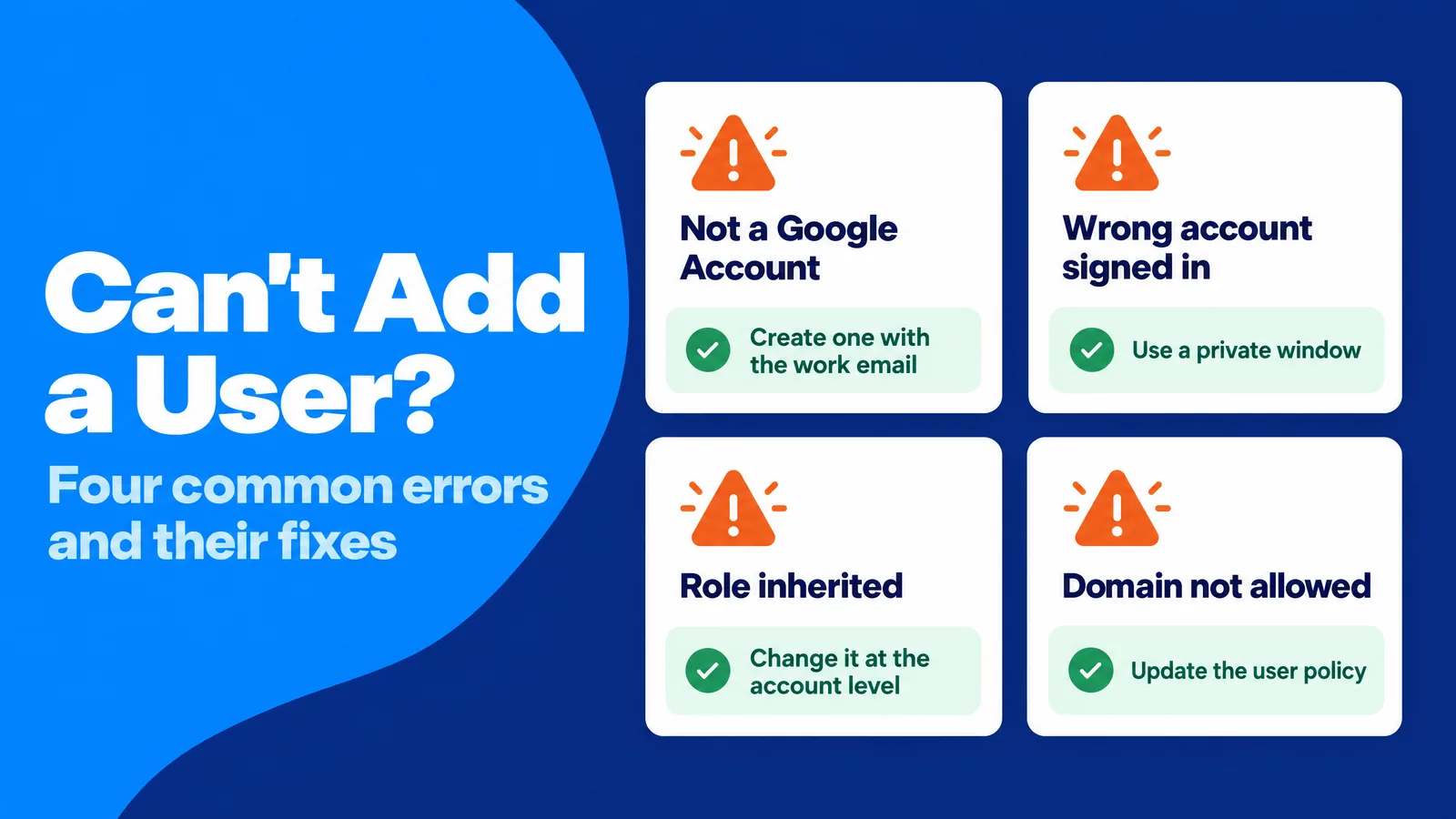
Most access problems fall into a few patterns: the wrong identity, the wrong level, inherited permissions, and organization policies. Knowing the pattern turns a frustrating support thread into a two-minute fix.
The email address is not a Google Account
GA4 can only add addresses that belong to a Google Account. If a partner uses a company email that is not on Google Workspace, they can create a free Google Account with that existing email address instead of a new Gmail address. After they verify it, you can add it. This keeps the partner's work identity separate from their personal account, which makes later offboarding cleaner.
The user cannot see the property
When an invited user reports that they have no access, the usual cause is a different signed-in account. Many people use several Google Accounts in one browser, and GA4 opens with whichever account is active. Asking the person to check the account icon in the top right corner, or to use a private browser window, solves most cases. If that is not the cause, the user may have been added to a different property with a similar name.
The role cannot be lowered
If GA4 does not let you reduce a role, the higher role comes from somewhere else: the account level, a user group, or an organization. You find the source in the user's effective permissions and change it there. Fixing the source avoids conflicting settings that confuse the next person who reviews access.
The user violates the organization's user policy
Companies that use a Google Marketing Platform organization can set a user policy that allows only certain email domains. If the policy is enforced, GA4 blocks invitations to other domains. The solution is to invite the partner's approved address or to ask an organization administrator to add the partner's domain or exact email to the allowed list.
The Add users option is missing
If you do not see the plus icon or the Add users option, you do not hold the Administrator role at that level. An existing Administrator can add the user for you or upgrade your role.
A service account cannot be added
Service accounts are non-human Google Cloud identities used by tools and scripts. The usual cause of a failed invitation is a typo in the long address, so copying it directly from the Google Cloud console solves most cases. Switching off the email notification also makes sense, because no person reads that inbox, and Viewer is enough for reporting through the Data API.
Advanced Access Governance for Growing Teams
Manual access management works for a team of five people and one property. It breaks at 50 users across a dozen properties, several agencies, and regular staff changes. At that size, nobody remembers why a given person has Editor rights, and every audit becomes an investigation.
Growth also creates single points of failure. If one person holds the only Administrator seat and leaves suddenly, routine tasks stop until access is recovered. Those tasks include adding a new agency or fixing a broken integration.
Growth also creates single points of failure. If one person holds the only Administrator seat and leaves suddenly, routine tasks stop until access is recovered. Those tasks include adding a new agency or fixing a broken integration.
The two-administrator rule
Software teams use the term bus factor for the number of people who would have to disappear before a project stalls. A bus factor of one is a single point of failure. For analytics, the fix is a rule that at least two in-house employees, using company email addresses, hold Administrator at the account level at all times.
This works because ownership survives holidays, illness, and resignations. It also keeps the recovery process, with its verification files and support forms, as something you never need.
This works because ownership survives holidays, illness, and resignations. It also keeps the recovery process, with its verification files and support forms, as something you never need.
User groups and user policies
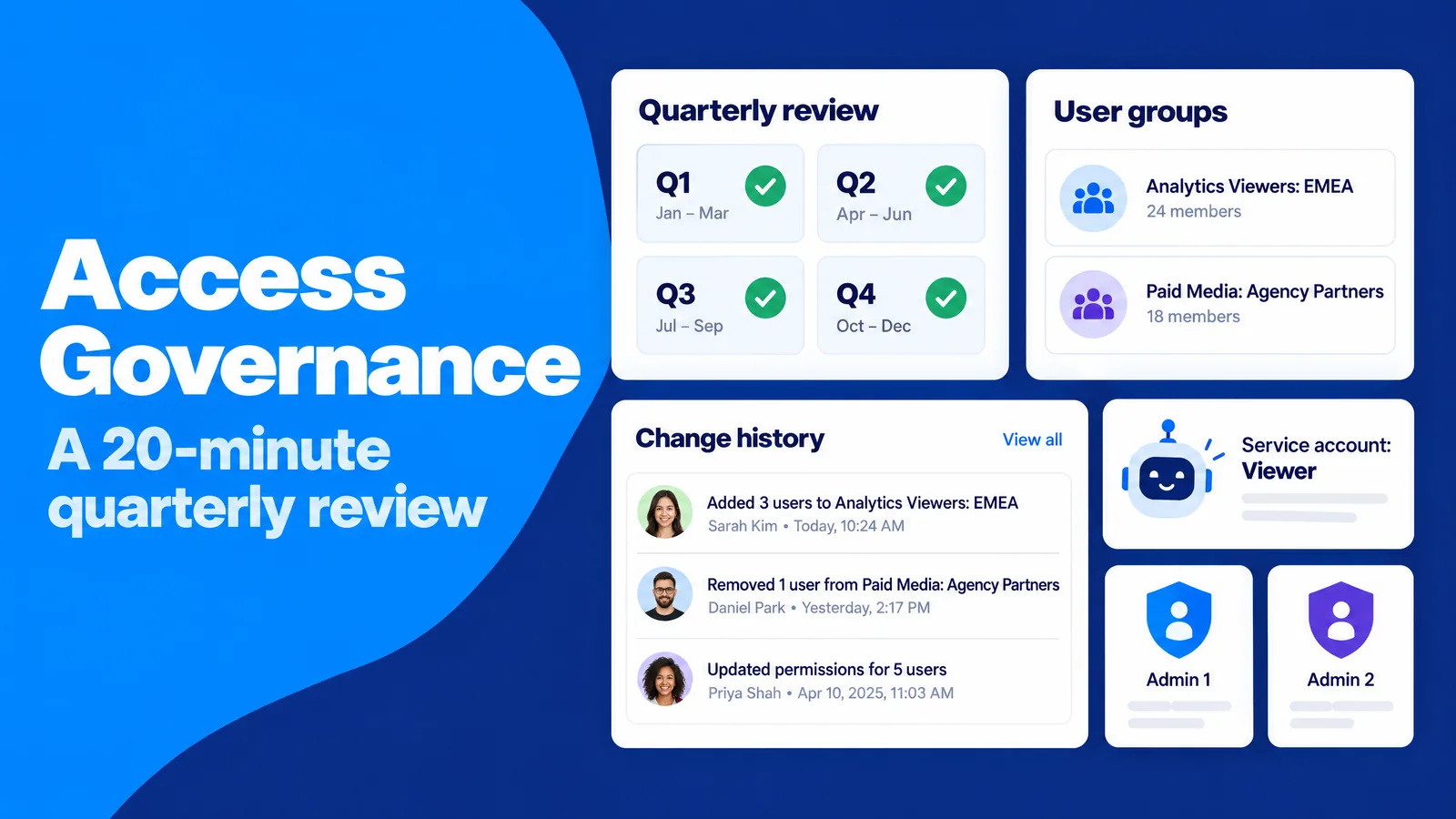
A Google Marketing Platform organization is a container that sits above your analytics accounts, and GA4 guides you through creating one when you set up your first user group. It provides two governance tools. User groups let you grant a role to a group, so a new analyst who joins "Analytics Viewers: EMEA" receives the right access in one step. User policies let you allow only approved email domains, and enforcement blocks invitations outside that list.
Clear naming keeps groups useful. Role-based names such as "Data Analysts: North America" or "Paid Media: Agency Partners" make it obvious who belongs where. When someone changes jobs, removing them from one group removes their access everywhere that group applies.
Clear naming keeps groups useful. Role-based names such as "Data Analysts: North America" or "Paid Media: Agency Partners" make it obvious who belongs where. When someone changes jobs, removing them from one group removes their access everywhere that group applies.
Service accounts for tools and dashboards
Dashboards, data warehouses, and reporting scripts often run on the personal login of whoever built them. When that person leaves and their account is removed, the reports stop. A service account, added to the property with the Viewer role, gives the tool its own identity that does not depend on any employee.
This approach also follows least privilege. The tool can read data but cannot change settings, and its access appears clearly in your user list. The reports themselves keep running for the people who need them, whether they study traffic sources, content performance, and user behavior or prepare a monthly board summary.
This approach also follows least privilege. The tool can read data but cannot change settings, and its access appears clearly in your user list. The reports themselves keep running for the people who need them, whether they study traffic sources, content performance, and user behavior or prepare a monthly board summary.
Audit trails in change history and data access reports
GA4 keeps two kinds of records. Change history, available to Editors and Administrators, lists every change to account and property settings for the last two years, with the time, the item, the action, and the person who made it. Data access reports show who read data, when, and how, for example through the interface, the API, or Google Ads.
In standard GA4, data access reports are available through the Admin API, while the built-in data access history page is limited to Analytics 360. Either way, the records help you find accounts that have not been used in months. Only 33% of UK businesses monitor user activity at all, so even a simple review puts you ahead of most.
In standard GA4, data access reports are available through the Admin API, while the built-in data access history page is limited to Analytics 360. Either way, the records help you find accounts that have not been used in months. Only 33% of UK businesses monitor user activity at all, so even a simple review puts you ahead of most.
A quarterly access review in 20 minutes
A short review every quarter keeps access aligned with reality:
- You scan the access list for the account and each property.
- You compare every name with your current staff and partner list.
- You confirm that at least two in-house people, and ideally no more than three, hold Administrator.
- You downgrade or remove users who have not accessed data in 90 days.
- You check linked Google Ads and Firebase users after any new integration.
- You record the date and the changes in a shared document.
The record is the step most teams skip, and it is the step that proves your controls work when a client, auditor, or regulator asks.
Sharing Analytics Data Honestly With Buyers, Investors, and Sponsors
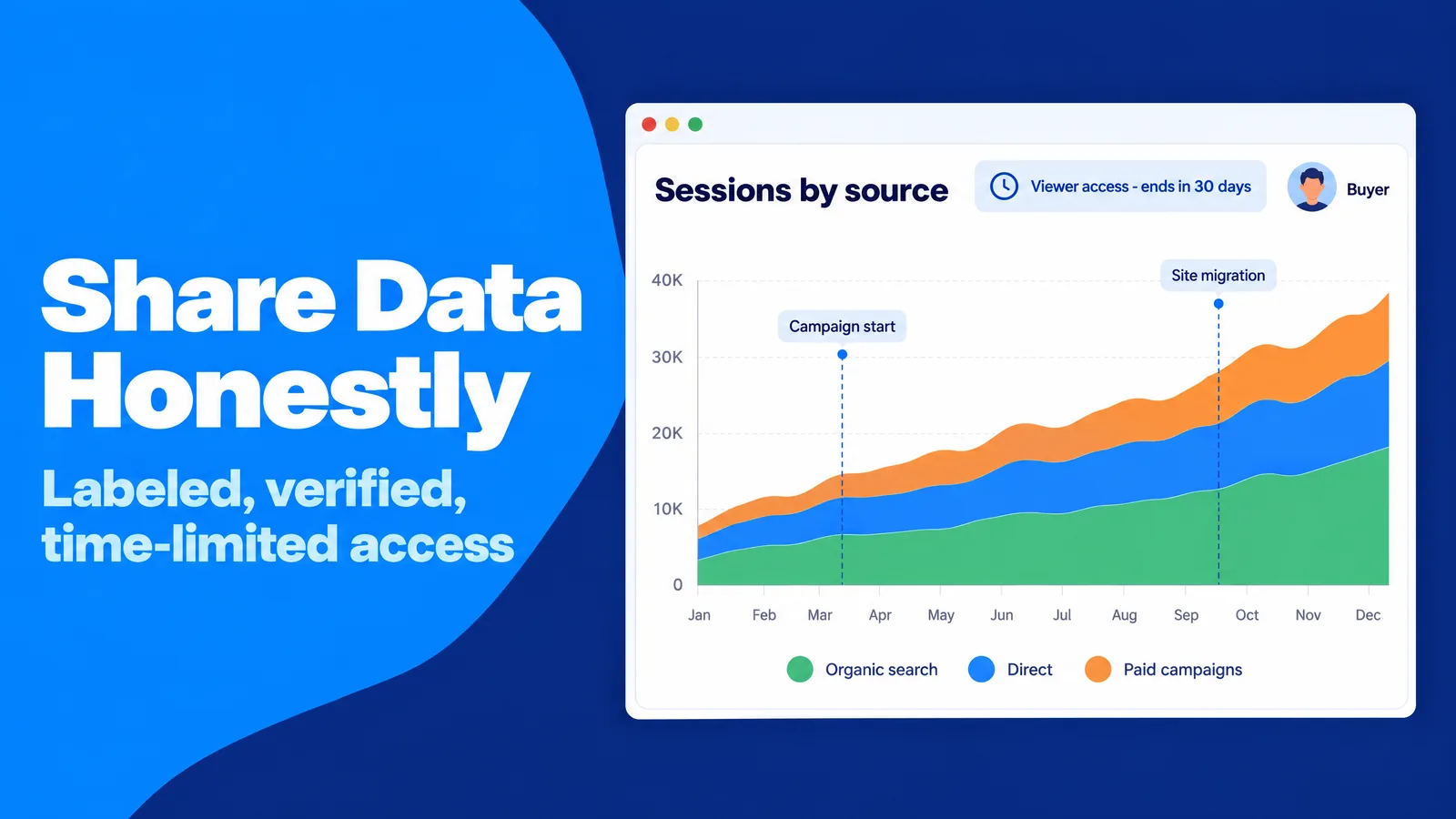
Analytics access often leaves the company. A website buyer asks for access during due diligence, an investor wants to see growth, or a sponsor wants proof of audience before signing a deal. These moments create pressure to present the best possible picture.
The outdated practice is a set of screenshots in a pitch deck: a hand-picked date range, a chart without comparison, and traffic from every source blended into one impressive line. Screenshots like these invite disputes later. When a buyer finds that a traffic spike came from a paid campaign or a one-off event, trust in the whole deal collapses. Using any traffic source to make an audience look bigger than it is misleads the people who rely on those numbers, and responsible advertising platforms refuse campaigns built for that purpose.
The outdated practice is a set of screenshots in a pitch deck: a hand-picked date range, a chart without comparison, and traffic from every source blended into one impressive line. Screenshots like these invite disputes later. When a buyer finds that a traffic spike came from a paid campaign or a one-off event, trust in the whole deal collapses. Using any traffic source to make an audience look bigger than it is misleads the people who rely on those numbers, and responsible advertising platforms refuse campaigns built for that purpose.
Practical step: verified, labeled, time-limited access
The modern alternative is live, read-only access with clear labels. You add the buyer or investor as a Viewer on the relevant property, with an agreed end date. Before they arrive, you make sure the data explains itself.
Three habits make that possible. Every paid campaign uses consistent UTM tags, so its visits appear under their own source and medium instead of hiding in direct traffic. Every campaign, site migration, or tracking change gets an annotation, which Analysts and higher roles can add directly on report charts. If you used paid traffic to A/B test a landing page, the test period deserves its own annotation too. And a report comparison shows paid campaign visits separately from organic and direct visits, so the reader sees what the audience looks like without advertising.
The same labeling discipline applies to newer sources. Visits from AI assistants often arrive with little referral data, so a clear method for tracking AI traffic keeps those sessions from distorting the story. This works because the other party can verify every number themselves. Honest, labeled data shortens due diligence, reduces renegotiation, and builds the kind of reputation that makes the next deal easier.
Three habits make that possible. Every paid campaign uses consistent UTM tags, so its visits appear under their own source and medium instead of hiding in direct traffic. Every campaign, site migration, or tracking change gets an annotation, which Analysts and higher roles can add directly on report charts. If you used paid traffic to A/B test a landing page, the test period deserves its own annotation too. And a report comparison shows paid campaign visits separately from organic and direct visits, so the reader sees what the audience looks like without advertising.
The same labeling discipline applies to newer sources. Visits from AI assistants often arrive with little referral data, so a clear method for tracking AI traffic keeps those sessions from distorting the story. This works because the other party can verify every number themselves. Honest, labeled data shortens due diligence, reduces renegotiation, and builds the kind of reputation that makes the next deal easier.
Frequently Asked Questions About Adding Users in Google Analytics
The same questions come up in almost every team that shares a GA4 property. The short answers below summarize the rules covered in this guide.
Can I add someone to Google Analytics without a Gmail address?
Yes. GA4 accepts any email address that is registered as a Google Account, including Google Workspace addresses and company emails that the person has registered with Google. The person must sign in with that exact address to see the property.
What is the difference between account access and property access?
Account access applies the chosen role to every property in the account, including properties created later. Property access applies only to one property. For most people, and for every outside partner, property access is the safer default.
How do I give someone access to Google Analytics without making them an Administrator?
You choose a lower role in step 5 of the invitation: Viewer for reading reports, Analyst for sharing explorations, Marketer for audiences and key events, or Editor for property settings. Only Administrators can manage users, so a lower role keeps user management in your hands.
Can I give access to only one report or one data stream?
No. The property is the smallest unit you can share in standard GA4. Report filters can focus a view, but users can remove them. For stricter separation, you can use data restrictions, separate properties, or subproperties in Analytics 360.
Does the new user receive an email invitation?
Yes, if "Notify new users by email" stays ticked when you add them. The email is a notification, not an approval step, so access starts immediately. The user still needs to sign in with the invited address.
How many Administrators should a Google Analytics account have?
Two or three in-house Administrators is a sensible standard. One Administrator creates a single point of failure, while a long list of Administrators makes every audit harder and raises the chance of an unwanted change.
Human-First Access Management: Putting It All Together
Every setting in this guide exists for one reason: the people reading your reports make decisions that affect real customers. A content writer decides which topics to cover, a media buyer decides where budget goes, and a founder decides whether a channel deserves more investment. Good access management gives each of them accurate data and nothing they do not need.
The shortcuts are always tempting: Administrator for everyone, a shared password for the agency, screenshots instead of access, a review that never happens. Each one saves a few minutes and creates a problem that costs hours or more. The practices that work are less dramatic: property-level access by default, the lowest role that fits the job, two in-house Administrators, individual logins with multi-factor authentication, written scope for partners, and a short quarterly review.
The shortcuts are always tempting: Administrator for everyone, a shared password for the agency, screenshots instead of access, a review that never happens. Each one saves a few minutes and creates a problem that costs hours or more. The practices that work are less dramatic: property-level access by default, the lowest role that fits the job, two in-house Administrators, individual logins with multi-factor authentication, written scope for partners, and a short quarterly review.
Practical step: a one-page access policy
The simplest way to make these habits stick is a one-page policy that anyone on your team can read in five minutes. It states who owns the account, which role each job receives, how partners are added and removed, and when reviews happen. You store it with your analytics documentation and update it after each quarterly review.
A written policy works because it turns individual judgment into a shared standard. New team members follow it from day one, partners know the rules before they ask, and your analytics stays what it should be: a trustworthy record of how real people interact with your business.
A written policy works because it turns individual judgment into a shared standard. New team members follow it from day one, partners know the rules before they ask, and your analytics stays what it should be: a trustworthy record of how real people interact with your business.